![DI Logo Dark (2)-1.png]](https://20137853.hs-sites.com/hs-fs/hubfs/DI%20Logo%20Dark%20(2)-1.png?height=50&name=DI%20Logo%20Dark%20(2)-1.png)
-
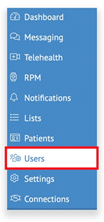
To start adding your team members select Users on the left side of your screen
-
Select Add Team Members in the top right corner of your screen
-

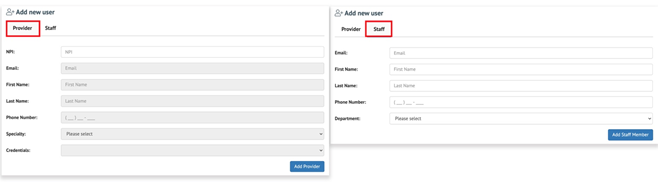
You can select Provider or Staff user from the tabs at the top of this view to enter the new user information
*NOTE: Each user must have a unique email address

-
Once complete click Add Staff Member or Add Provider and you will see your new user listed 😊
-
If you are adding a staff member that needs to have administrator privileges click here for detailed instructions on how to do this (Remember: A Provider user cannot be an administrator user)
-

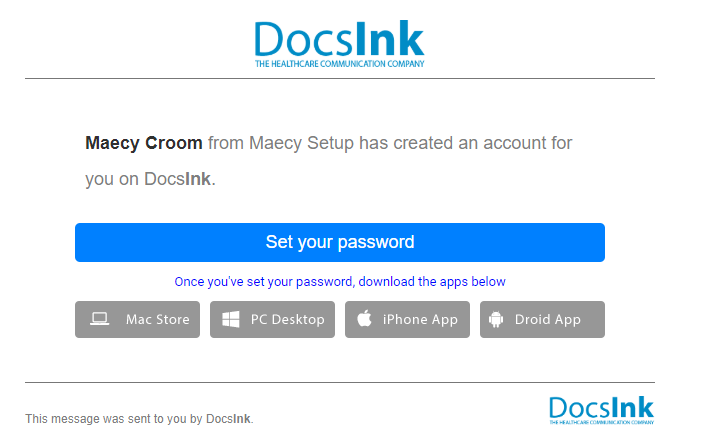
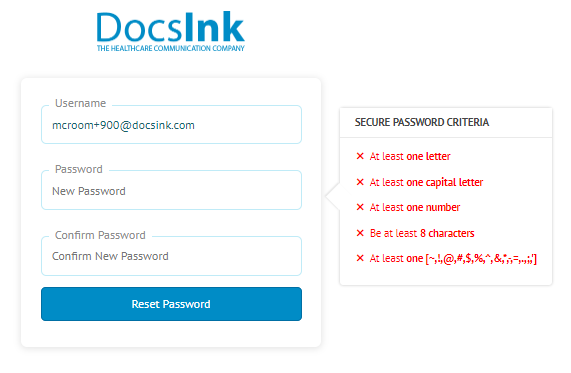
Once you have added this user they will receive an email to set up their password like shown below:

-
Their username is their email address and password requirements are shown below:
-
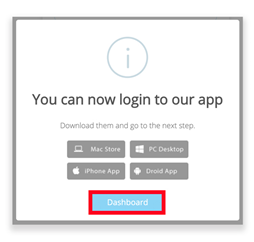
Once their password is set they are also given the option to download our DocsInk Native Desktop App! We recommend this to all of our users for a more user-friendly version of our software
-
If chosen to not download the app - you can select the blue Dashboard button to continue to the browser screen
-
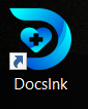
Once the Desktop Application has been installed the icon is displayed as shown below:
-
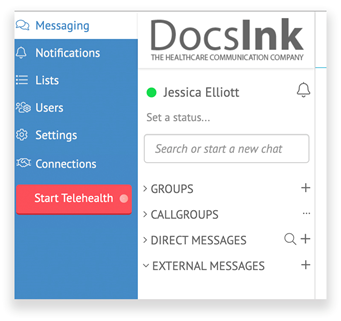
By logging in to the Desktop app or by selecting the Dashboard button they will be taken to the main Messenger screen shown below
Website View:
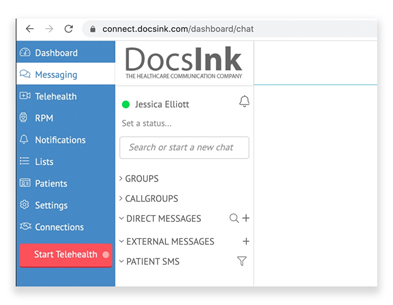
Desktop App View: