![DI Logo Dark (2)-1.png]](https://20137853.hs-sites.com/hs-fs/hubfs/DI%20Logo%20Dark%20(2)-1.png?height=50&name=DI%20Logo%20Dark%20(2)-1.png)
You must be an administrator in your organization's DocsInk account to be able to create a Favorites list of CPT codes and assign them to a provider.
If you are an account administrator please follow the steps below:
-
First, you must login to the DocsInk Browser linked here : https://connect.docsink.com/dashboard/home
-
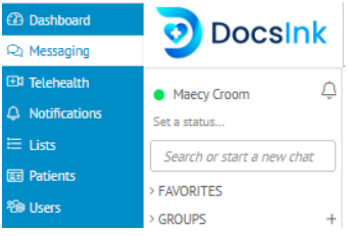
Once you are logged in - proceed to the Dashboard
-
Select the Team Builder tab located near the top of the screen

-
Select the Cube Icon to access 'My Apps'

-
Choose Charge Capture

-
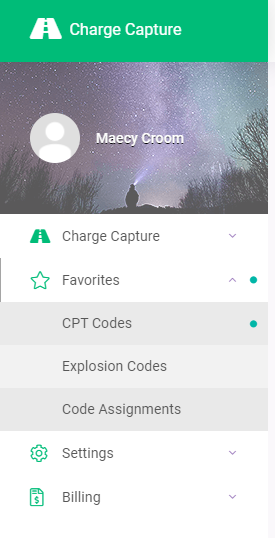
Select Favorites from the left side margin
-
Select CPT Codes to create a list of CPT code favorites or Explosion Codes to create an Explosion Code

-
Select the purple Create button

-
Complete fields for Step 1 of creating template

-
Click Next at the bottom to proceed to Step 2
-
Search your CPT code. Then click & drag the selection to the adjacent rectangle
**Note: You can have up to 20 CPT Codes added to your favorites list. You cannot exceed 20 items on the list.

-
Once you have completed adding your CPT Codes select Save
-
You should see your template listed - If you need to Edit a template now or later you may do so by selecting the pencil icon to make any changes

-
Next, select Code Assignments on the left side margin
-
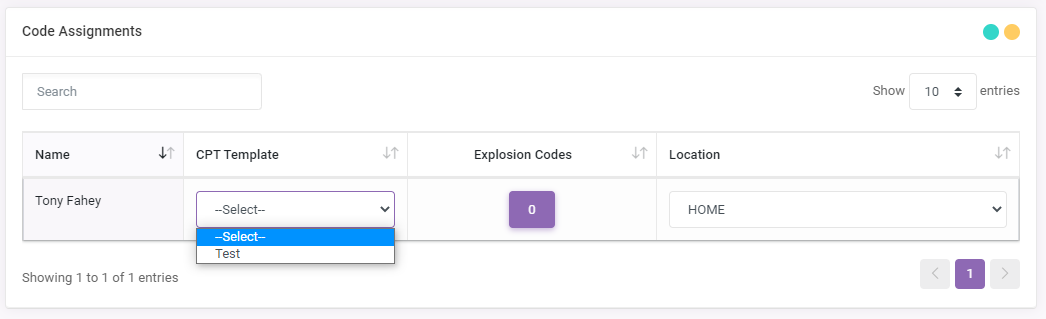
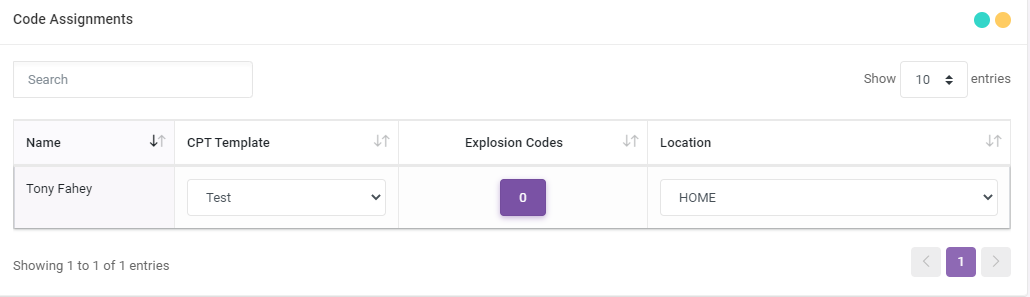
Select the drop down under CPT Template next to the provider name and choose the CPT Template created for this provider
-
You may only have 1 template assigned per provider

-
To assign an Explosion Code select the purple button under the Explosion Codes column and select from the created explosion code to assign to your provider
-
Your provider will need to log out and log back in to their DocsInk account once these steps have been completed to access their CPT Codes Favorites List