![DI Logo Dark (2)-1.png]](https://20137853.hs-sites.com/hs-fs/hubfs/DI%20Logo%20Dark%20(2)-1.png?height=50&name=DI%20Logo%20Dark%20(2)-1.png)
-
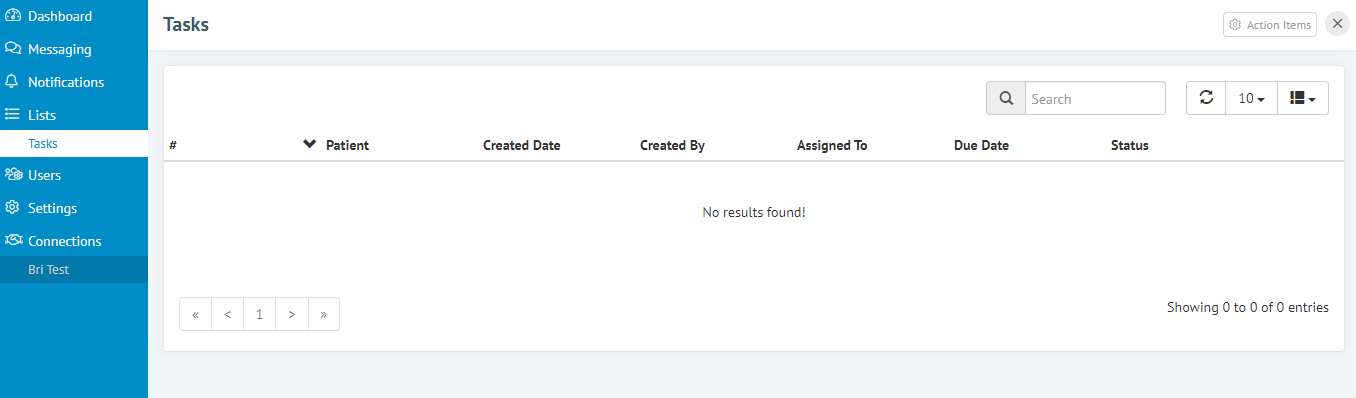
From the DocsInk Communication Screen select 'Lists' from the margin on the left and then select 'Tasks'
-
Select 'Action Items' located in the upper right corner of the screen

-
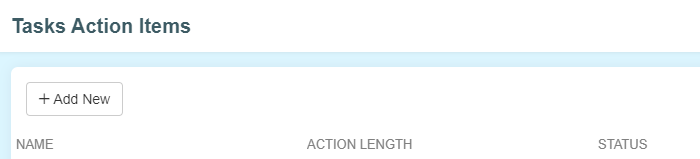
Click '+ Add New' to create a new task type
-
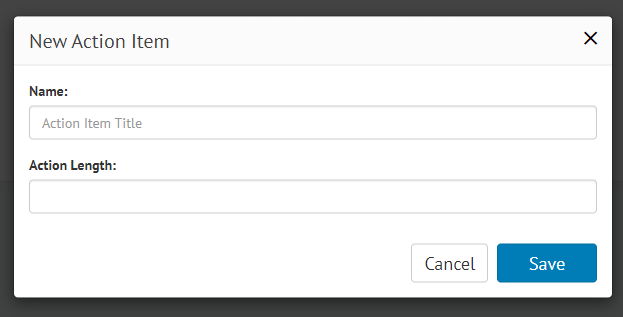
Task can be any type of activity that you would assign a staff member to do
[Examples: New Patient Intake, Pre-Authorization, Schedule New Appt, etc.]
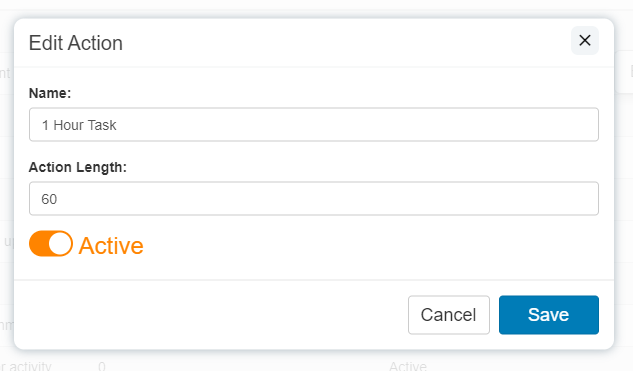
NOTE: Action Length defaults to '0' in this module
-
Click 'Save' to add to the list
-
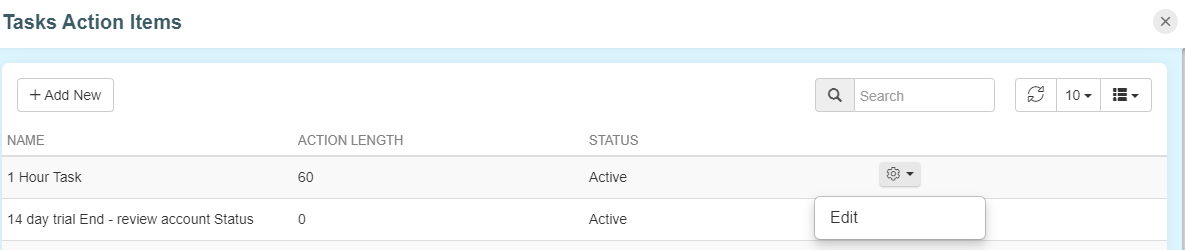
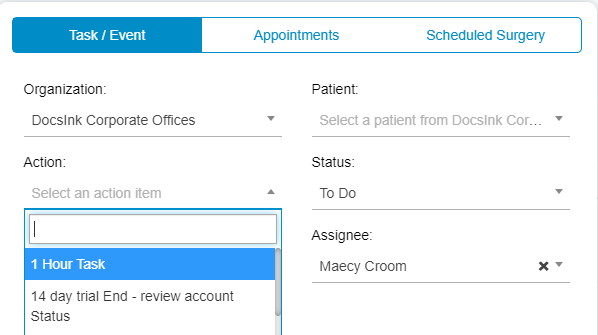
All task types will be displayed under 'Task Action Items'
-
To Edit - hover over the Task Action to reveal the gear icon and click to select Edit
-
Toggle next to 'Active' to make this task action item visible or inactive
-
You can create as many Task Types as you would like. These are customizable for each organization
-
See Managing Tasks for how to best use tasks in your workflow